
- Step-by-step guidance covers CLI usage, SDK integration, CI/CD pipelines, and Kubernetes (SPC & External Secrets Operator).
- Key risks, compliance considerations, and operational tips ensure secrets are never hard-coded, minimizing exposure and supporting enterprise-scale security and governance.
This tutorial helps you better understand AWS Secrets Manager, how it works under the hood and how to access it from Kubernetes clusters.
In my previous tutorials, we looked at Azure Key Vault and Google Secret Manager:
- How to Handle Secrets with Azure Key Vault: In this piece, we had a look at the Zero Trust security strategy, how to put it into practice to secure applications and data, and how secrets managers can help to achieve the Zero Trust goal. We also included a tutorial on Kubernetes/SPC to use secrets from secret managers.
- How to Handle Secrets with Google Secret Manager: In this piece, we did a tutorial on using secrets from secret managers in your CI workflows (GitHub Actions).
If you haven't read them yet, please give them a quick read, because even if you are not an Azure or a GCP user, they still might be worth reading.
Today, we will have a look at AWS's equivalent: AWS Secrets Manager. We will do a quick introduction and some tutorials (cheat sheet included).
Let's get started.
1. What is AWS Secrets Manager?
In general, a secret manager helps you improve your security posture by getting rid of hard-coded credentials in application source code, CI/CD workflows, and maybe even Kubernetes YAML manifests. Hard-coded credentials are replaced with a runtime call to the secret manager (or other mechanisms) to retrieve/sync credentials dynamically when you need them, and this helps avoid possible compromise by anyone who can inspect your application or the components.
AWS Secrets Manager is AWS's offering, which can help you manage, retrieve, and even rotate secrets, which can be database credentials, application credentials, OAuth tokens, API keys, and other secrets throughout their lifecycles.
2. What Secrets Can Be Stored in Secrets Manager?
You can manage secrets such as database credentials, on-premises resource credentials, SaaS application credentials, third-party API keys, and Secure Shell (SSH) keys.
Please note that although Secrets Manager enables you to store a JSON document which allows you to manage any text blurb that is 64 KB or smaller, making it possible to be used in a wide range of scenarios, for certain types of secrets, there are better ways to manage them in AWS, for example:
- AWS credentials: we can use AWS IAM instead of storing/accessing AWS credentials with Secrets Manager. Some best practices here.
- Encryption keys: use AWS KMS service.
- SSH keys: use AWS EC2 Instance Connect instead.
- Private keys and certificates: use AWS Certificate Manager.
3. Secrets Manager Features
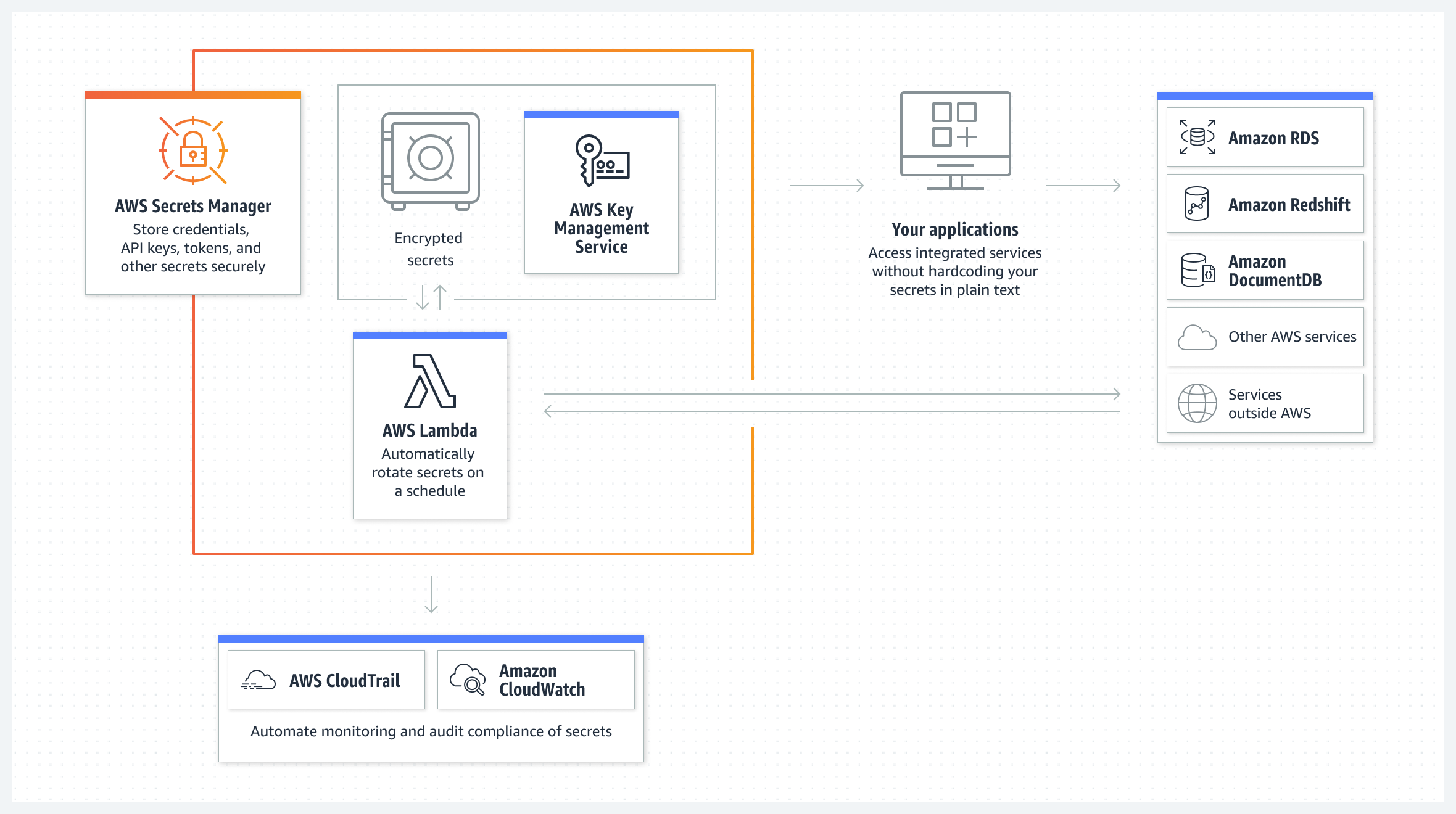
AWS Secrets Manager enables us to store, retrieve, control access to, rotate, audit, and monitor secrets centrally. Here are some features worth mentioning:
- Fine-grained access control policies: IAM policies and resource-based policies can be used together to manage access to our secrets.
- Multi-region replication: we can automatically replicate secrets to multiple AWS Regions to meet our disaster recovery and cross-regional redundancy requirements.
- Secrets rotation: the credentials for AWS RDS (Relational Database Service), DocumentDB, and Redshift can be natively rotated by Secrets Manager. We can also extend Secrets Manager to rotate other secrets, such as credentials for Oracle databases hosted on EC2 or OAuth refresh tokens, by modifying sample AWS Lambda functions available in the Secrets Manager documentation.
- Audit and monitoring: Secrets Manager can be integrated with many AWS logging, monitoring, and notification services, making auditing and monitoring secrets easy. For example, after enabling CloudTrail for a region, we can audit when a secret is created or rotated by viewing CloudTrail logs; for another, we can configure CloudWatch to receive email messages using SNS when secrets remain unused for a period or configure CloudWatch events to receive push notifications when Secrets Manager rotates our secrets.
AWS Secrets Manager Security Best Practices for Access Control
Implementing robust access control is fundamental to AWS Secrets Manager security best practices. Following the principle of least privilege, organizations should configure fine-grained IAM policies that restrict secret access to only necessary users and services. Use resource-based policies in conjunction with identity-based policies to create defense-in-depth access controls.
Key security configurations include enabling the secretsmanager:BlockPublicPolicy condition to prevent broad access policies, implementing attribute-based access control (ABAC) for dynamic permissions, and utilizing VPC endpoints to restrict network access. Consider implementing time-based access controls and requiring multi-factor authentication for sensitive secrets.
  "Version": "2012-10-17",
  "Statement": {
    "Effect": "Allow",
    "Action": "secretsmanager:GetSecretValue",
    "Resource": "arn:aws:secretsmanager:region:account:secret:prod-db-*",
    "Condition": {
      "StringEquals": {
        "secretsmanager:ResourceTag/Environment": "production"
      },
      "IpAddress": {
        "aws:SourceIp": "10.0.0.0/16"
      }
    }
  }
}
Regular access reviews and automated compliance monitoring through AWS Config rules ensure ongoing adherence to security policies and help identify potential privilege escalation risks.
4. How Secrets Manager Works under the Hood
To understand how it works, think of Secrets Manager as a super secure vault for our sensitive data. It uses powerful encryption keys, which we own and store in AWS Key Management Service (KMS). We are in full control of who can access our secrets with the help of AWS Identity and Access Management (IAM) policies.
When a secret needs to be retrieved, Secrets Manager ensures it's done securely. It first decrypts the secret, then sends it to our application over a secure connection (TLS). And don't worry, it doesn't write down or stash our secret anywhere else.
For the encryption part, Secrets Manager uses what's called envelope encryption (AES-256 encryption algorithm) to encrypt our secrets in AWS Key Management Service (KMS):
- When start using Secrets Manager, the AWS KMS keys can be specified to encrypt secrets. If not specified, don't worry, because Secrets Manager will automatically create AWS KMS default keys.
- When a secret is stored, Secrets Manager works some magic behind the scenes. It asks KMS for plain text and an encrypted data key. Then, it uses that plain text data key to encrypt secrets right in memory. This encrypted secret and data key are then stored safely away.
- When accessing a secret, Secrets Manager decrypts the data key (using AWS KMS default keys) and uses the plain text data key to decrypt the secret. Rest assured, the data key is always stored encrypted and never written to the disk in plain text. Plus, the secret won't be written or cached to persistent storage in plain text either.
5. Creating a Secret in Secrets Manager
5.1 Create/Update
We can create a secret in the AWS web console:
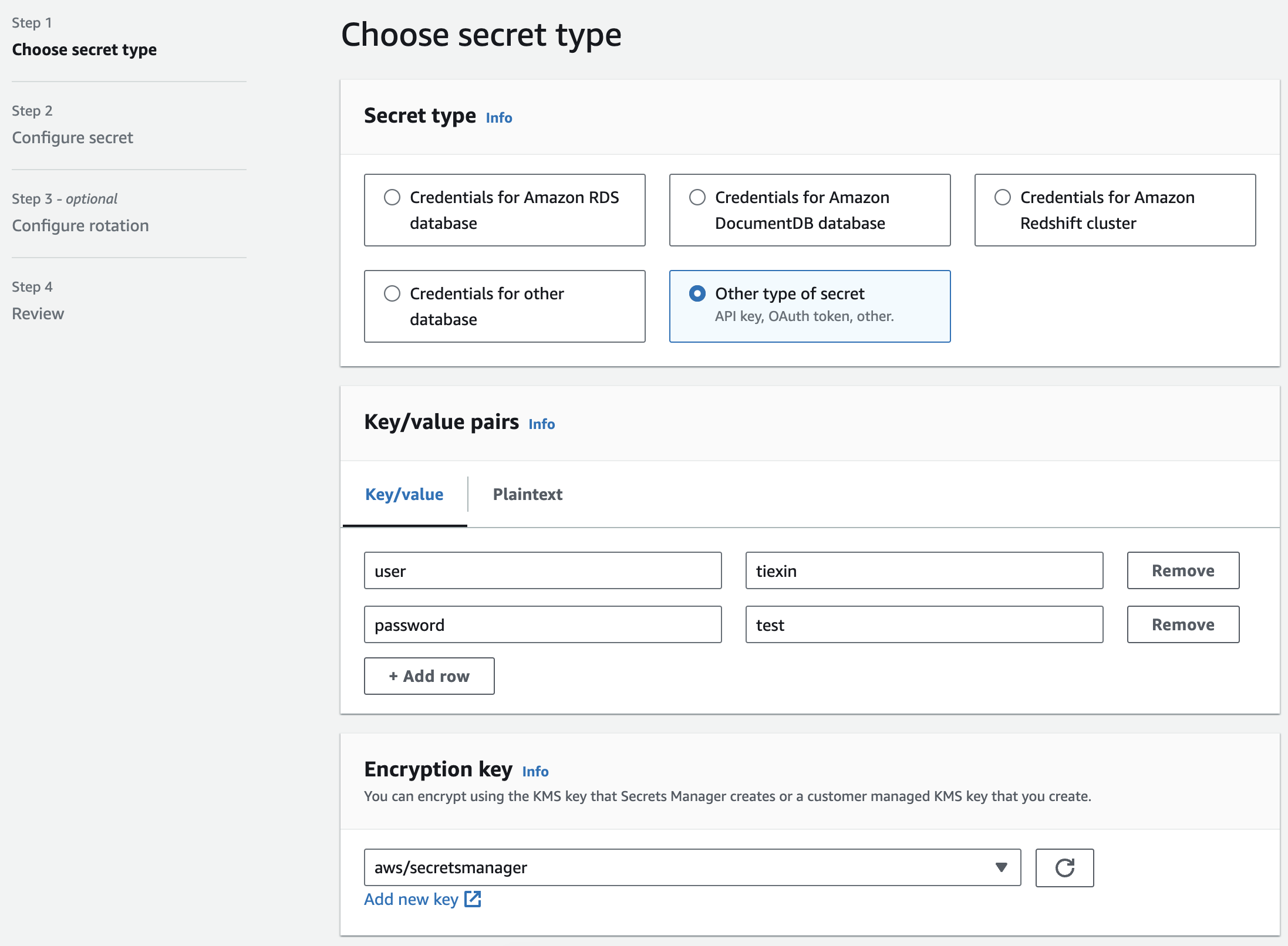
In this example, I chose "other type of secret", and named it "MyTestSecret1":
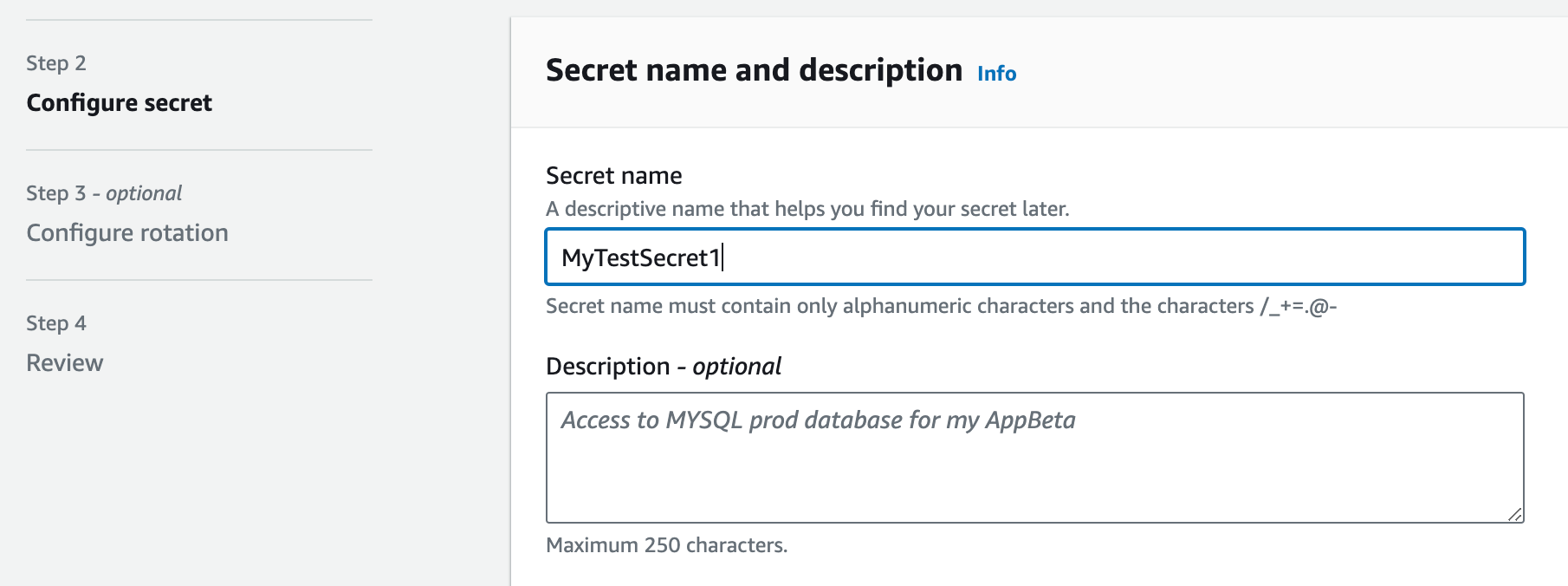
Other settings are left as default.
Of course, as a hardcore DevOps engineer, I prefer the CLI way because the web console is too user-friendly and I don't like it (just joking).
To create a secret using the CLI:
aws secretsmanager create-secret \
  --name MyTestSecret2 \
  --description "My test secret created with the CLI." \
  --secret-string "{'user':'tiexin','password':'EXAMPLE-PASSWORD'}"
The command above creates a secret with two key-value pairs.
Alternatively, we can store the content of the secret in a JSON file, and create a secret using that JSON file. Create a file named mycreds.json with the following content:
{
  "username": "tiexin",
  "password": "EXAMPLE-PASSWORD"
}
And create a secret from the file:
aws secretsmanager create-secret \
  --name MyTestSecret3 \
  --secret-string file://mycreds.json
We can get the value with the get-secret-value command:
aws secretsmanager get-secret-value --secret-id MyTestSecret3
And we can also update the value using the put-secret-value command:
aws secretsmanager put-secret-value \
  --secret-id MyTestSecret3 \
  --secret-string "{'user':'tiexin','password':'NEW-EXAMPLE-PASSWORD'}"
The above command creates a new version (discussed in the next subsection) of a secret with two key-value pairs.
5.2 Secret Versions
A secret has versions that hold copies of the encrypted secret value. When you change the secret value or the secret is rotated, Secrets Manager creates a new version. Secrets Manager doesn't store a linear history of secrets with versions. Instead, it keeps track of three specific versions by labeling them, like AWSCURRENT, AWSPREVIOUS. A secret always has a version labeled AWSCURRENT, and Secrets Manager returns that version by default when you retrieve the secret value.
For example, if we have a look at the secret "MyTestSecret3", on which we did an update:
aws secretsmanager list-secret-version-ids --secret-id MyTestSecret3
{
    "Versions": [
        {
            "VersionId": "a11a8133-96ae-4abc-9bfb-e737ae39266e",
            "VersionStages": [
                "AWSPREVIOUS"
            ],
            "CreatedDate": 1692428755.262,
            "KmsKeyIds": [
                "DefaultEncryptionKey"
            ]
        },
        {
            "VersionId": "a2477f83-02a9-457c-b473-c9589c5d7309",
            "VersionStages": [
                "AWSCURRENT"
            ],
            "CreatedDate": 1692428770.661,
            "KmsKeyIds": [
                "DefaultEncryptionKey"
            ]
        }
    ],
    "ARN": "arn:aws:secretsmanager:ap-southeast-1:xxx:secret:MyTestSecret3-vGMlXZ",
    "Name": "MyTestSecret3"
}
We can see that there are two versions of it.
5.3 List/Find
We can use the command aws secretsmanager list-secrets to list all secrets, and use the --filter parameter to filter wanted secrets:
aws secretsmanager list-secrets --filter Key="name",Values="MyTest"
This will show all secrets whose names start with "MyTest".
Other than the "name" filter we used in the above command, there are other filter keys you can use:
- description
- tag-key
- tag-value
- owning-service
- primary-region
- all (searches all of the above keys)
5.4 Delete
Because of the critical nature of secrets, AWS Secrets Manager intentionally makes deleting a secret difficult.
Secrets Manager DOES NOT immediately delete secrets by default. Instead, Secrets Manager immediately makes the secrets inaccessible and scheduled for deletion after a recovery window of a minimum of 7 days. Until the recovery window ends, you can recover a secret you previously deleted.
To delete a secret:
aws secretsmanager delete-secret \
  --secret-id MyTestSecret3 \
  --recovery-window-in-days 7
During the recovery window, if wanted, we can recover the secret by running:
aws secretsmanager restore-secret \
  -secret-id MyTestSecret3
With the CLI, it's possible to do a force-delete without a recovery window but please use it with caution:
aws secretsmanager delete-secret \
  --secret-id MyTestSecret2 \
  --force-delete-without-recovery
6. Accessing Secrets
In the previous two tutorials (link here and here, we have covered a few ways to access secrets stored in a secret manager, like from an application directly using the SDK provided by the public cloud provider; from CI pipelines, like GitHub Actions; and from a Kubernetes cluster using the Secret Provider Class (SPC). Although the previous two tutorials are done with Azure and GCP, the principles are the same for AWS.
6.1 From Applications Directly Using SDK
For example, to access secrets from a Python application, we will need:
- Python 3.6 or later.
- botocore 1.12 or higher. See AWS SDK for Python and Botocore.
- setuptools_scm 3.2 or higher. See https://pypi.org/project/setuptools-scm/.
To install the component, use the following command.
$ pip install aws-secretsmanager-caching
The Python application needs the following IAM permissions:
- secretsmanager:DescribeSecret
- secretsmanager:GetSecretValue
For example, if you are running the Python app on an EC2 virtual machine, the instace profile of that EC2 needs the above permissions.
The following code snippet example shows how to get the secret value for a secret named MyTestSecret1:
import botocore
import botocore.session
from aws_secretsmanager_caching import SecretCache, SecretCacheConfig

client = botocore.session.get_session().create_client('secretsmanager')
cache_config = SecretCacheConfig()
cache = SecretCache( config = cache_config, client = client)

secret = cache.get_secret_string('MyTestSecret1')
print(secret)
For more detail on accessing secrets in a Python app using the SDK, see the official doc here.
6.2 From CI Workflows (Example: GitHub Actions)
Similarly, as we did in the GCP tutorial, we can use a secret in a GitHub job to retrieve secrets from AWS Secrets Manager and add them as masked Environment variables in our GitHub workflows.
To do this, we first need to allow GitHub Actions to access AWS Secrets Manager, which can be achieved by using the GitHub OIDC provider. My previous blog here details how to do this, allowing us to use short-lived credentials and avoid storing additional access keys outside of Secrets Manager.
The IAM role assumed by the GitHub Actions must have the following permissions:
- GetSecretValue on the secrets we want to retrieve
- ListSecrets on all secrets.
Then we can simply add a step in our GitHub Actions workflow using the following syntax to access secrets from Secrets Manager:
- name: Step name
  uses: aws-actions/aws-secretsmanager-get-secrets@v1
  with:
    secret-ids: MyTestSecret1
    parse-json-secrets: (Optional) true|false
6.3 From K8s/EKS Clusters with the Secret Provider Class (SPC)
Similarly, as we did in the Azure tutorial, we can use Kubernetes Secret Provider Class to access secrets from Kubernetes clusters.
We use YAML to describe which secrets to mount in AWS EKS. The SPC is in the following format:
apiVersion: secrets-store.csi.x-k8s.io/v1
kind: SecretProviderClass
metadata:
  name: <NAME>
spec:
  provider: aws
  parameters:
    region:
    failoverRegion:
    pathTranslation:
    objects:
Here's an example:
apiVersion: secrets-store.csi.x-k8s.io/v1alpha1
kind: SecretProviderClass
metadata:
  name: nginx-deployment-aws-secrets
spec:
  provider: aws
  parameters:
    objects: |
      - objectName: "MySecret"
        objectType: "secretsmanager"
For more details on using SPC with AWS EKS and Secrets Manager, see the official doc here.
AWS Secrets Manager Rotation Best Practices
Automated secret rotation is a cornerstone of AWS Secrets Manager best practices, significantly reducing the risk of credential compromise. Secrets Manager supports native rotation for AWS RDS, DocumentDB, and Redshift databases, with customizable rotation intervals as frequent as every four hours.
Implement the alternating user rotation strategy for production databases to ensure zero-downtime rotation. This approach maintains two sets of credentials, rotating them alternately while applications continue using the active set. For custom applications, develop Lambda-based rotation functions that follow the four-phase rotation process: create new credentials, test connectivity, update applications, and finalize rotation.
Monitor rotation health through CloudWatch metrics and set up SNS notifications for rotation failures. Establish rollback procedures and test rotation processes in non-production environments first. Consider implementing rotation windows during low-traffic periods for critical systems.
  --secret-id prod-database-credentials \
  --rotation-rules AutomaticallyAfterDays=30 \
  --rotation-lambda-arn arn:aws:lambda:region:account:function:rotate-secret
Document rotation dependencies and ensure all consuming applications support dynamic credential retrieval to prevent service disruptions during rotation cycles.
Monitoring and Compliance for AWS Secrets Manager
Comprehensive monitoring and compliance tracking are essential aws secrets manager security best practices for maintaining organizational security posture. Implement CloudTrail logging to capture all Secrets Manager API calls, including secret creation, access, and modification events. Configure CloudWatch alarms for suspicious activities such as unusual access patterns, failed authentication attempts, or secrets accessed from unexpected IP addresses.
Establish AWS Config rules to monitor compliance with organizational policies, such as ensuring all secrets have rotation enabled and proper encryption keys configured. Use GuardDuty to detect potential threats like compromised credentials or unusual secret access patterns from known malicious IP addresses.
Create automated compliance reports using AWS Systems Manager to track secret lifecycle management, including unused secrets, rotation status, and access frequency. Implement cost monitoring to identify secrets that may no longer be needed, as unused secrets represent both security and financial risks.
SecretAccessAlarm:
  Type: AWS::CloudWatch::Alarm
  Properties:
    AlarmName: ExcessiveSecretAccess
    MetricName: GetSecretValue
    Namespace: AWS/SecretsManager
    Statistic: Sum
    Period: 300
    EvaluationPeriods: 2
    Threshold: 100
Regular security audits should include reviewing secret access logs, validating rotation schedules, and ensuring compliance with industry standards and regulatory requirements.
7. Tutorial: AWS EKS + External Secrets Operator + Secrets Manager
Today, let's do a tutorial using a different approach for accessing Secrets Manager from Kubernetes clusters: the External Secrets Operator.
7.1 The Secret Store CSI Driver/SPC Method Explained
SPC works by ways of Secrets Store CSI Driver to mount secrets, and since the CSI is Container Storage Interface, it mounds secrets as a container storage volume. This means secrets must be mounted as a volume on the Pod.
In the cloud-native era, following the 12-factor app principle, we don't want to write our apps in a way that they read secrets from a local file path. We prefer to read secrets from ENV vars, for example, using a Kubernetes Secret as ENV vars with envFrom and secretRef. In the case of the Secrets Store CSI Driver/SPC method, it can sync secrets from a secret manager as a Kubernetes Secret, but the volume is still required to do so, which seems to be a bit of redundancy since we won't be using that volume anyways.
7.2 External Secret Operator
External Secrets Operator is a Kubernetes operator that integrates external secret management systems like AWS Secrets Manager (and HashiCorp Vault, Google Secrets Manager, Azure Key Vault, etc.) The operator reads information from external APIs and automatically injects the values into a Kubernetes Secret.
Although it sounds very similar to the SPC method, the key difference is that the External Secret Operator does not use the CSI driver, hence requiring no volumes to sync secrets from a secret manager.
With the key difference cleared out of the way, let's continue with the tutorial.
7.3 Create an EKS Cluster
On macOS, the easiest way to install eksctl is by using brew:
brew tap weaveworks/tap
brew install weaveworks/tap/eksctl
For other operating systems and installation methods, see the README here.
After installation, we can run a simple command to bootstrap a cluster:
eksctl create cluster
This command will create an EKS cluster in the default region (as specified by AWS CLI config) with one managed node group containing two m5.large nodes.
7.4 Install External Secret Operator
After the cluster is up and running, we can install the External Secret Operator using helm:
helm repo add external-secrets https://charts.external-secrets.io
helm repo update
helm install external-secrets \
  external-secrets/external-secrets \
  -n external-secrets \
  --create-namespace
Then, we need to allow External Secret Operator to access AWS Secrets Manager. Since this is a tutorial and not meant for a production environment, we will do so by creating a secret containing our AWS credentials which has access to Secret Manager:
echo -n 'KEYID' > ./access-key
echo -n 'SECRETKEY' > ./secret-access-key
kubectl create secret generic awssm-secret --from-file=./access-key --from-file=./secret-access-key
Please note that this is only for tutorial purposes; for a production environment, use the IAM role for service accounts. See the AWS official doc here and External Secret Operator official doc here.
7.5 Create a Secret Store
A SecretStore points to AWS Secrets Manager in a certain account within a defined region. Create a file named secretstore.yaml with the following content:
apiVersion: external-secrets.io/v1beta1
kind: SecretStore
metadata:
  name: secretstore-sample
spec:
  provider:
    aws:
      service: SecretsManager
      region: ap-southeast-1
      auth:
        secretRef:
          accessKeyIDSecretRef:
            name: awssm-secret
            key: access-key
          secretAccessKeySecretRef:
            name: awssm-secret
            key: secret-access-key
And apply it by running: kubectl apply -f secretstore.yaml. Remember to update the region to the region where you store your secrets in AWS Secrets Manager.
7.6 Create an External Secret
Then, we create an External Secret that syncs a secret from AWS Secrets Manager as a Kubernetes Secret. Create a file named externalsecret.yaml with the following content:
apiVersion: external-secrets.io/v1beta1
kind: ExternalSecret
metadata:
  name: example
spec:
  refreshInterval: 1h
  secretStoreRef:
    name: secretstore-sample
    kind: SecretStore
  target:
    name: secret-to-be-created
    creationPolicy: Owner
  data:
  - secretKey: secret-key-to-be-managed
    remoteRef:
      key: MyTestSecret1
  data:
  - secretKey: username
    remoteRef:
      key: MyTestSecret1
      property: user
  - secretKey: password
    remoteRef:
      key: MyTestSecret1
      property: password
And apply it by running: kubectl apply -f externalsecret.yaml.
The ExternalSecret above means:
- Create a K8s Secret named "secret-to-be-created" (defined in the "target) section
- The K8s Secret will have two keys, one is "username" (from MyTestSecret1.user in AWS Secrets Manager) and the other is "password" (from MyTestSecret1.password in AWS Secrets Manager).
After applying the YAML, we can verify by running:
$ kubectl describe secret secret-to-be-created
Name:         secret-to-be-created
Namespace:    default
Labels:       reconcile.external-secrets.io/created-by=default_example
Annotations:  reconcile.external-secrets.io/data-hash: 49d444f36fb63e85d07ccc7a8d10441c

Type:  Opaque

Data
====
password:  4 bytes
username:  6 bytes
We can see that the Kubernetes secret is already created automatically by the External Secrets Operator, synchronizing values from AWS Secrets Manager. From here, you can use envFrom and secretRef in your Kubernetes Deployment/Pod.
8. Tear Down
Delete all secrets created in this tutorial:
aws secretsmanager delete-secret \
  --secret-id MyTestSecret1 \
  --force-delete-without-recovery

aws secretsmanager delete-secret \
  --secret-id MyTestSecret2 \
  --force-delete-without-recovery

aws secretsmanager delete-secret \
  --secret-id MyTestSecret3 \
  --force-delete-without-recovery
Delete the EKS cluster:
eksctl delete cluster --name NAME_OF_THE_EKS_CLUSTER_CREATED
9. Cheat Sheet
9.1 Secrets CRUD
Create:
aws secretsmanager create-secret --name MyTestSecret \
  --description "xxx" \
  --secret-string "xxx"
Create using a file:
aws secretsmanager create-secret \
  --name MyTestSecret \
  --secret-string file://mycreds.json
Read:
aws secretsmanager get-secret-value --secret-id MyTestSecret
Update:
aws secretsmanager put-secret-value \
    --secret-id MyTestSecret \
    --secret-string "yyy"
List versions:
aws secretsmanager list-secret-version-ids --secret-id MyTestSecret
List/search:
aws secretsmanager list-secrets --filter Key="name",Values="MyTest"
Delete:
aws secretsmanager delete-secret \
  --secret-id MyTestSecret \
  --recovery-window-in-days 7
Force delete without a recovery window:
aws secretsmanager delete-secret \
  --secret-id MyTestSecret \
  --force-delete-without-recovery
9.2 Access Secrets from GitHub Actions
OIDC provider usage example: https://blog.gitguardian.com/securing-your-ci-cd-an-oidc-tutorial/
GitHub Actions step to read a secret:
- name: Step name
  uses: aws-actions/aws-secretsmanager-get-secrets@v1
  with:
    secret-ids: MyTestSecret1
    parse-json-secrets: (Optional) true|false
9.3 SPC/External Secrets Operator
SPC format reference:
apiVersion: secrets-store.csi.x-k8s.io/v1alpha1
kind: SecretProviderClass
metadata:
  name: nginx-deployment-aws-secrets
spec:
  provider: aws
  parameters:
    objects: |
      - objectName: "MySecret"
        objectType: "secretsmanager"
SecretStore format reference:
apiVersion: external-secrets.io/v1beta1
kind: SecretStore
metadata:
  name: secretstore-sample
spec:
  provider:
    aws:
      service: SecretsManager
      region: ap-southeast-1
      auth:
        secretRef:
          accessKeyIDSecretRef:
            name: awssm-secret
            key: access-key
          secretAccessKeySecretRef:
            name: awssm-secret
            key: secret-access-key
ExternalSecret template reference:
apiVersion: external-secrets.io/v1beta1
kind: ExternalSecret
metadata:
  name: example
spec:
  refreshInterval: 1h
  secretStoreRef:
    name: secretstore-sample
    kind: SecretStore
  target:
    name: secret-to-be-created
    creationPolicy: Owner
  data:
  - secretKey: secret-key-to-be-managed
    remoteRef:
      key: MyTestSecret1
  data:
  - secretKey: username
    remoteRef:
      key: MyTestSecret1
      property: user
  - secretKey: password
    remoteRef:
      key: MyTestSecret1
      property: password
Summary
In this article, we did a quick introduction to AWS Secrets Manager and demonstrated how to use AWS CLI to do CRUD for secrets. Then we covered how to use secrets using SDK, in CI workflows, and in Kubernetes with SPC.
Due to space limitations, in this tutorial, we didn't rewrite much on the SDK/SPC/GitHub Actions usage of secrets. If you have more questions on these parts, please refer to the previous two tutorials on Azure and GCP secret managers, where more details are available.
Then We did an extra extended tutorial on the External Secrets Operator; choose between that and the SPC method based on your requirements.
In the end, like always, a detailed cheat sheet is provided, covering the most common use cases regarding AWS Secrets Manager.
I hope this tutorial and the whole series are useful to AWS/GCP/Azure users. Please like, comment, subscribe. Thanks!
FAQs
What are the core AWS Secrets Manager best practices for access control?
Core best practices include enforcing least privilege through granular IAM policies, combining identity- and resource-based controls, enabling the secretsmanager:BlockPublicPolicy condition, and using VPC endpoints to restrict network access. Regularly audit permissions, apply ABAC, and require MFA for access to sensitive secrets to strengthen compliance and reduce the attack surface.
How does automated secret rotation work in AWS Secrets Manager, and what are the recommended strategies?
AWS Secrets Manager supports automated rotation for RDS, DocumentDB, Redshift, and custom secrets using Lambda. The recommended strategy is alternating users rotation, which maintains two credential sets and rotates them sequentially with zero downtime. Always test rotation logic in staging, monitor rotation health, and ensure clients can seamlessly adopt new credentials.
What monitoring and compliance mechanisms should be implemented with AWS Secrets Manager?
Enable CloudTrail for all API activity, set CloudWatch alarms for unusual access patterns, and use AWS Config rules to enforce mandatory rotation policies and encryption key usage. Integrate GuardDuty for threat detection and automate compliance reporting to track access frequency, unused secrets, and lifecycle events across your environment.
How can secrets be securely accessed from Kubernetes clusters using AWS Secrets Manager?
Use the Secrets Store CSI Driver to mount secrets as files or the External Secrets Operator to sync them into Kubernetes Secrets. Both require proper IAM setup via IRSA and should follow AWS Secrets Manager access control best practices, including fine-grained permissions and audit logging, to ensure secure retrieval and rotation.
What are the recommended steps for deleting and recovering secrets in AWS Secrets Manager?
When deleting a secret, AWS schedules removal with a minimum 7-day recovery window, during which the secret can be restored. For immediate permanent deletion, use --force-delete-without-recovery cautiously. Always verify that no active systems depend on the secret before deletion to avoid service outages.
How should organizations handle secret versioning and rotation dependencies?
Secrets Manager assigns labeled versions such as AWSCURRENT and AWSPREVIOUS. Ensure applications always fetch AWSCURRENT to avoid stale credentials. Document dependent services, validate rotation workflows in staging environments, and maintain backward compatibility when transitions occur during version updates.
What types of secrets should not be stored in AWS Secrets Manager?
AWS IAM credentials should be managed via IAM, encryption keys via AWS KMS, and certificates or SSH keys via AWS Certificate Manager or EC2 Instance Connect. While Secrets Manager supports many secret types, choosing the appropriate AWS service for each protects security boundaries and improves operational efficiency.
This article is a guest post. Views and opinions expressed in this publication are solely those of the author and do not reflect the official policy, position, or views of GitGuardian, The content is provided for informational purposes, GitGuardian assumes no responsibility for any errors, omissions, or outcomes resulting from the use of this information. Should you have any enquiry with regard to the content, please contact the author directly.