
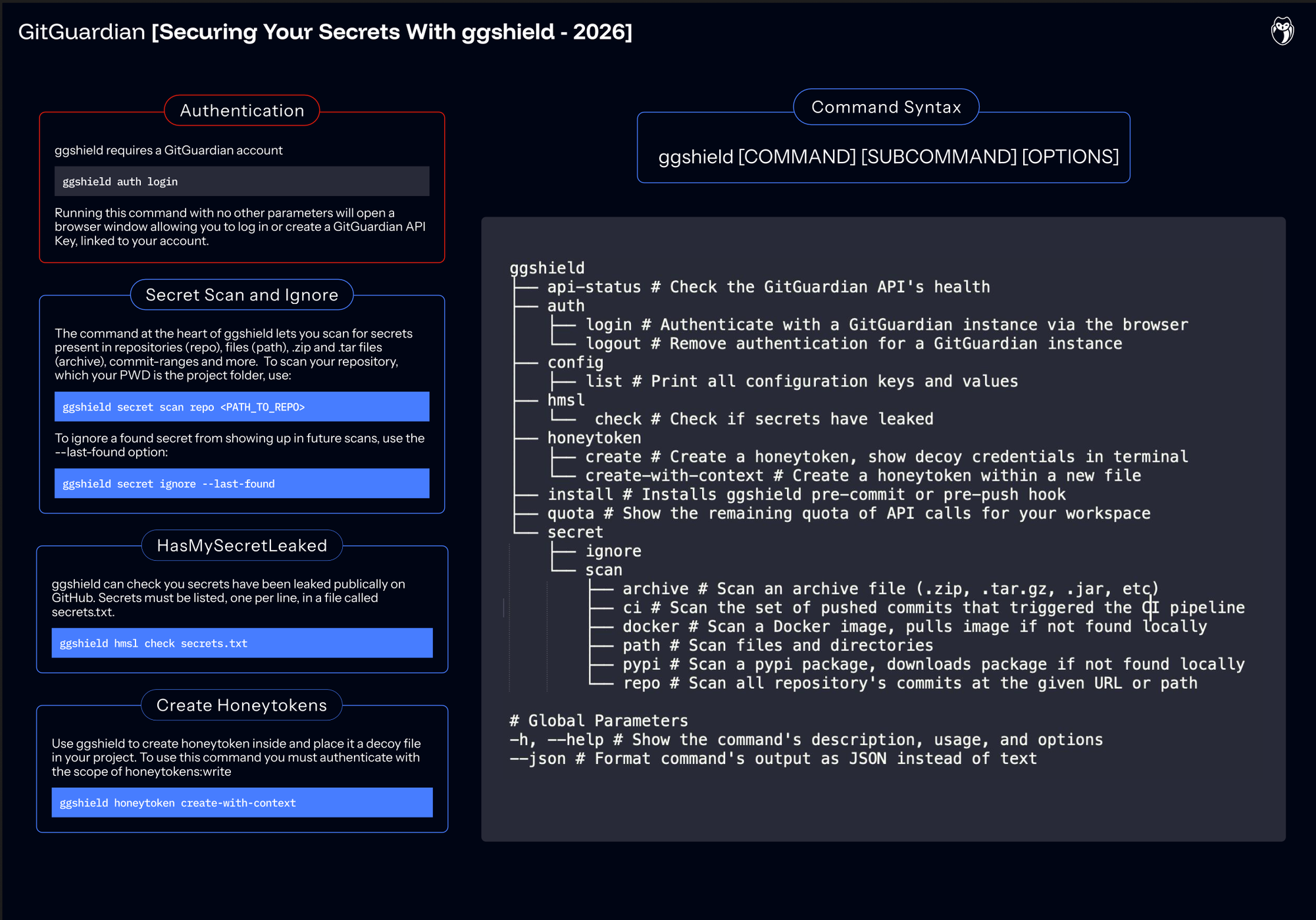
![How To Use ggshield To Avoid Hardcoded Secrets [cheat sheet included]](/content/images/size/w2000/2022/10/22W44-blog-SecuringYourSecretsWithGGshield-Cheatsheet.jpg)
Most developers live in the terminal. It is where you script away boring work and wire powerful tools together through command line interfaces (CLIs), scripts, and APIs.
CLIs are incredibly helpful and powerful, but often challenging to learn. The only real way to learn them is to use them often.
However, one simple, time-tested way to smooth that learning curve is to keep a cheat sheet nearby. A tight list of common commands and core concepts makes it much easier to get unstuck and stay in flow.
With the goal of making ggshield easier to learn while giving a compact, yet comprehensive overview of available commands, we are proud to present our new ggshield cheat sheet.
More Than Just Repo Scanning
When you think about ggshield, the CLI that extends the GitGuardian platform into your terminal, it is highly likely that your mind immediately jumps to manually scanning Git repositories for secrets. While you can definitely scan for secrets across repos, ggshield can also scan any source with text: from a single file to an entire directory, archives, Docker images, PyPI packages, and more. And with pre-commit and pre-push hooks, ggshield can serve as an automated guardrail to keep secrets out of developers' code.
ggshield can now do more than scan. Developers can also create Honeytokens, helping your team proactively guard against unwanted and unexpected access to your systems. And ggshield lets you use GitGuardian's HasMySecretLeaked service more effectively to see if any of your secrets have been leaked publicly on GitHub.
Let's go over a quick introduction to ggshield that will help you get started.
Command Structure
The first thing to understand about any CLI tool is how the commands are structured. Just as spoken languages follow rules of grammar to make sense, CLI tools follow a specified pattern, called syntax. For ggshield, the syntax is:
ggshield [COMMAND] [SUBCOMMAND] [OPTIONS] [ARGS]
The first part, ggshield, invokes the tool itself.
The command is what you actually want ggshield to do. Most commands require a subcommand to specify what actions you want ggshield to take. For example, ggshield secret requires further specifying path, repo, or another type of scan to perform
Options are switches you can turn on or off to change how the program behaves.
Arguments are any extra bits of information that command needs to execute. For example, a path or filename.
Help
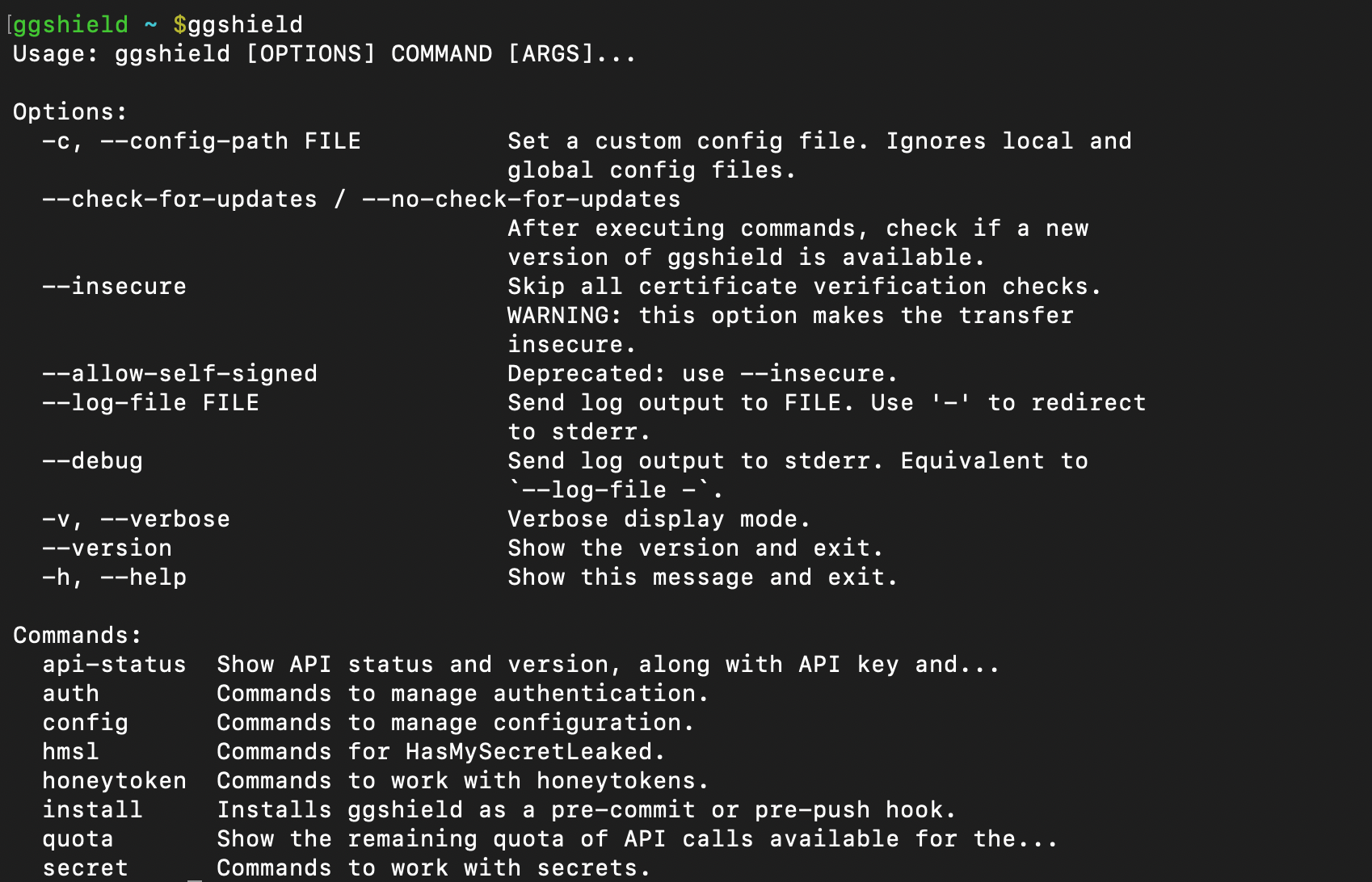
All ggshield commands offer usage assistance through the option --help or just -h.
For example: ggshield -h will print the syntax for ggshield commands as well as show a list of the available high-level commands, for example.
Authenticating To GitGuardian Platform
ggshield leverages the GitGuardian platform to perform scans looking for more than 500 types of secrets. After installing the tool, the next step is to authenticate with the platform. This can be done with the auth command and login subcommand:
ggshield auth login
Running that command without any other options will open a browser-based workflow, allowing you to log into your workspace. Once you log in and confirm you want to authenticate, GitGuardian will automatically generate a personal access token and store it in your configuration. If you want to create Honeytokens, you will need to expand your scope to include that. You can do this via a manually set token or with
ggshield auth login --scopes honeytokens:write
You can also redirect to your enterprise SSO authorization flow, or set a time to live for your authentication token. You can read more about those options in the documentation.
Auth Logout
You can remove your authentication token from GitGuardian and ggshield by running:
ggshield auth logout
Secret Scan
The ggshield secret command is the most commonly run command.
There are currently two subcommands for the secret command: scan and ignore. The ggshield secret scan subcommand requires some additional options to specify exactly what you want the tool to accomplish.
Secret Scan Repo
As the first part of our company's name implies, we are experts in searching Git repositories. The secret scan repo command lets you search repos either locally, or on any URL you can access. If you are specifying a URL you will need to make sure it ends in .git.
For example, if you want to run a secrets scan on the public demo repo GitGuardian/sample_secrets, you would use:
ggshield secret scan repo https://github.com/GitGuardian/sample_secrets.git
Note: Running this query will produce a lot of results, as this repository is an example of how not to store your credentials in your code.
The --json Option
Sometimes, you want the output of ggshield commands to be returned as JSON, JavaScript Object Notation, which uses "key":"value" pairs to structure output. This can make it easier to use scan output in scripts or to integrate with other services.
Unlike --help, which can go at the end of any command, --json needs to go after the subcommand but before any options. For example, to return the output of ggshield secrets scan repo . as JSON, use:
ggshield secrets scan --json repo .
Secret Scan Path
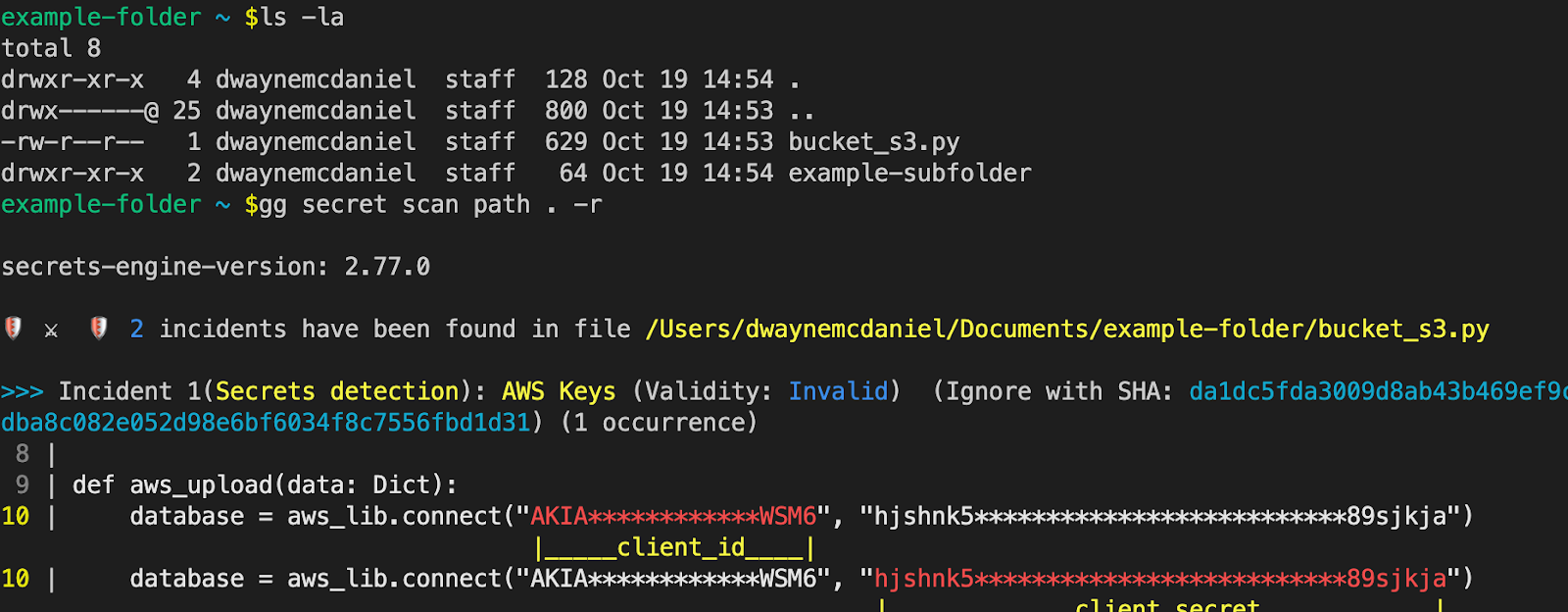
While secret scan repo is useful for locally cloned repositories, ggshield can also scan any files, even outside of version control. This can be used as you are creating a new project as a way to ensure no secrets make it near the initial commit. For example, to check for secrets in the directory you are currently working in, use:
ggshield secret scan path --recursive .
If you want to scan a folder containing subfolders, you will need to add the --recursive or -r option.
Secret Scan Commit-Range
One major issue with hardcoding and committing secrets is that they persist forever by default. Even if you later remove the API key, password, or other credentials from your latest commits, any previous commits and secrets will still be present in your permanent project history. While ggshield secret scan repo will search through all the commits in all of your repo's branches, you might want to focus your search to just between certain refs.
To specify the range, ggshield uses ... notation, which is also used by Git. Any commit-ish ref can be used, such as a full commit ID, branch name, tag, or HEAD. Leveraging that last option, we can quickly look at a commit-range between the most recent and the prior 3 commits you would use:
ggshield secret scan commit-range HEAD~3...HEAD
Secret Scan Archive
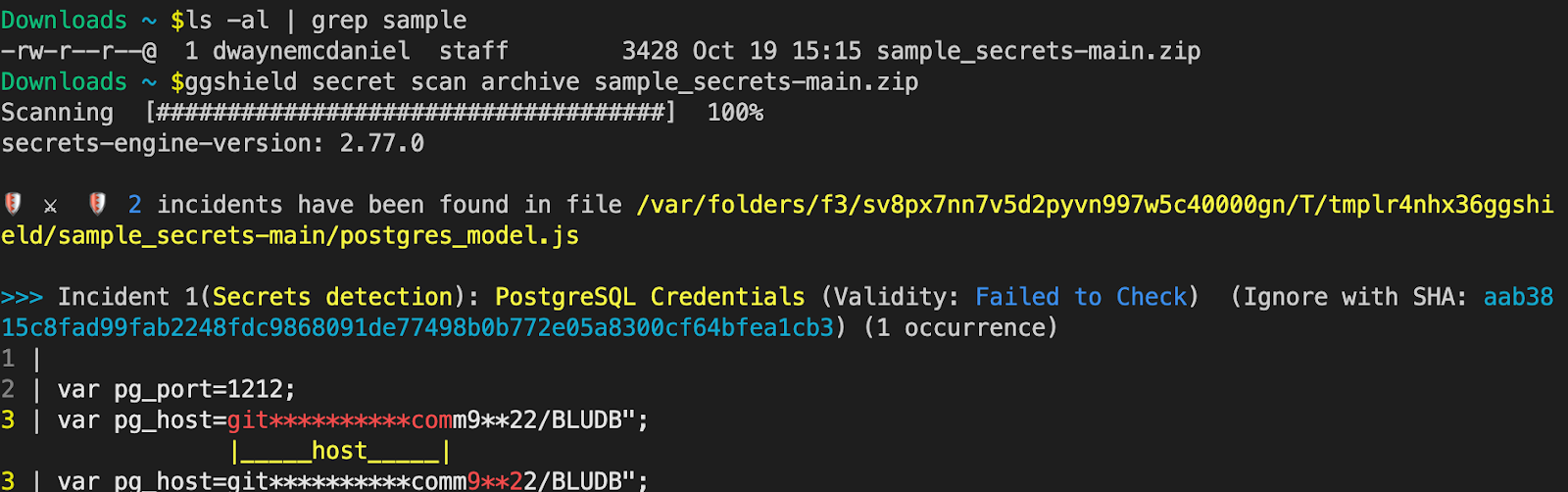
Archiving your Git repos makes your code even easier to package, copy and distribute. It also means any secrets included in an archive are going to be in all future copies and can end up in all sorts of unexpected places. Fortunately, ggshield gives you a way to make sure any .zip, .tar, .tar.gz, .tar.bz2, and .tar.xz archives are free of secrets.
To scan an archive, use:
ggshield secret scan archive path/to/archive
Secret Scan Docker And Pypi
PyPi
Before you add that Python dependency into your project, test to see if there are any suspicious secrets lurking about. Just specify the Python Package Index name, and ggshield will pull it down and scan it for you.
To scan a pypi package use:
ggshield secret scan pypi PACKAGE_NAME>
Docker
Containers can make it extremely easy to share your work with other developers. Using Docker can mean the end of "it worked on my machine". However, packaging up a whole container with docker save means you might be sharing secrets in the exported filesystem and manifest.
With ggshield, you can quickly scan those files using:
ggshield secret scan docker <IMAGE_NAME>
Secret Scan CI
Unlike all our other commands you have seen so far, scanning a CI requires you to be working within a pipeline. This is not intended to be run locally. It is designed to scan the set of pushed commits that triggered the CI pipeline build, be it from a push or a pull request.
Setting up ggshield CI scanning is straightforward, and we officially support and have documentation for the following providers:
Secret Ignore
While it is very important to catch your secrets before you ship them to production, it is also important to eliminate false positives. While GitGuardian scanning is extremely high precision, you can fine-tune for exceptions and edge cases. If a secret is uncovered in a secrets scan of a repo or a path, you can add that term to the ignore list, stored in your ggsheild config.
To ignore a found secret from showing up in future scans, use:
ggshield secret ignore –last-found
Install Git Hooks
While you can manually run a ggshield secret scan to find any credentials in your files, you can also run it every time you make a commit or push by leveraging Git's built-in automation platform, Git Hooks. Automating scanning relies on the commands ggshield secret scan pre-commit and ggshield secret scan pre-push.
These two commands are built to quickly check just the tracked changes as you are working with Git. You can quickly add ggshield secret scan pre-commit to your local .git/hooks folder by using the command:
ggshield install –mode local –hook-type pre-commit
If you are already using Git Hooks, then you will most likely want to append the existing file instead of writing a new one. You can do this with the --append or -a option.
For example, if you wanted to append the pre-push hook command to your global Git config, use:
ggshield install –mode global –hook-type pre-push -a
Pre-receive Hook
A pre-receive hook allows you to reject commits from being pushed to a git repository if they do not validate every check. This git hook needs to be installed on your version control platforms, such as GitHub Enterprise, Gitlab Self-Managed, or Bitbucket Server. Please see our documentation for more details and examples.
Working With HasMySecretLeaked
Since 2018, GitGuardian has been scanning for secrets added to GitHub public repositories. We have a database of over 20 million publicly leaked secrets, and we allow individual users and organizations to search for matching fingerprints to verify if any of their secrets have leaked in public repositories, gists, and issues on GitHub.
We call this service HasMySecretLeaked, hence the ggshield command hmsl.
There are two paths to using ggshield hmsl
The first path uses three separate commands, allowing you to audit each step. Alternatively, you can achieve the same output in a single command that automates the three required steps.
For both approaches, to use HasMySecretLeaked with ggshield, you will need to assemble any secrets found through secret scanning into a single text file named secrets.txt. Please see the documentation for an example.
The first step is to fingerprint the secrets in the file. This step leverages the standard hashing algorithm we use to transform all found secrets to take a fingerprint of your secrets. Only those fingerprints are sent as the payload to the GitGuardian platform. The output is encrypted, and if you are running each step manually, you will need to decrypt it.
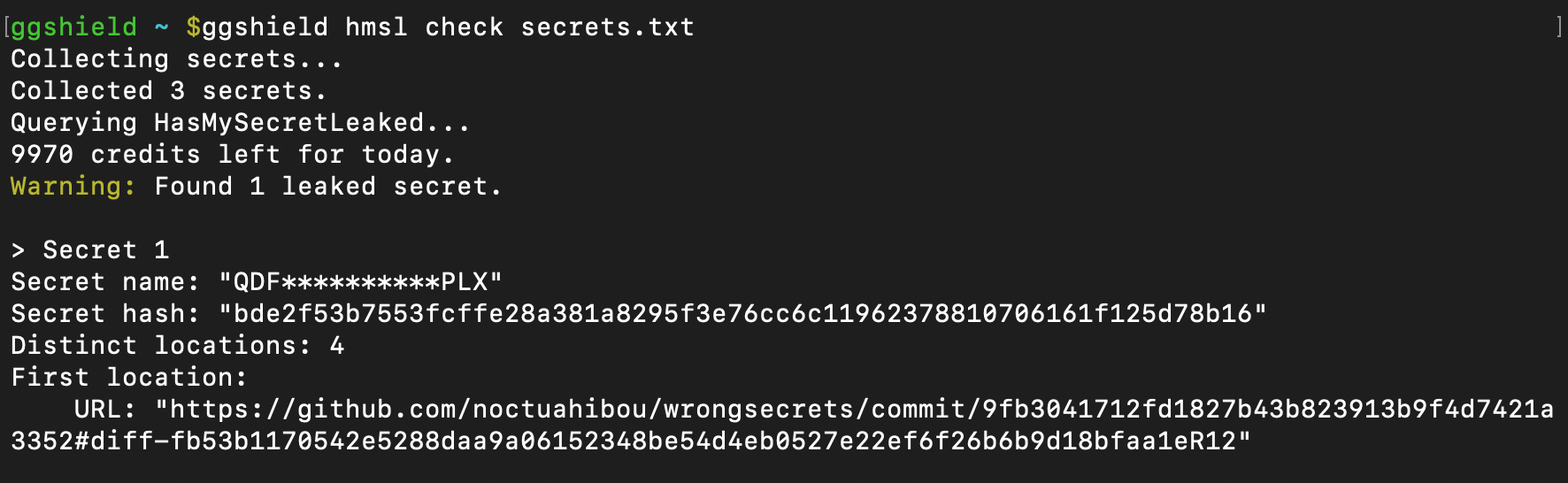
You can alternatively just run ggshield hmsl check and supply the path to the file containing your list of secrets. ggshield performs all the needed commands in just one smooth step, displaying the decrypted reply from GitGuardian in plaintext in your terminal.
For example, if the file secrets.txt in the present working directory, you would use:
ggshield hmsl check secrets.txt
Honeytoken
A GitGuardian Honeytoken is a decoy secret that alerts you when someone or something tries to use it or validate it. You can think of it as a digital tripwire.
They look like real AWS keys, because they are valid keys, but they do not allow any access whatsoever. These credentials are isolated to an AWS account that GitGuardian maintains exclusively for this use case.
With ggshield, any user with a Manager role can create a new AWS-based Honeytoken with just a few keystrokes. Simply use:
honeytoken create --type AWS
Running the command returns the decoy credential, which is ready to be copied into your code, project management tooling, communications platform, or any other private environment.
ggshield can also create a Honeytoken inside a new file with a name that might realistically appear in your project. This can make it harder for an attacker to catch on that there is any cyber deception at play. We refer to this as being created "with context."
To add a new AWS Honeytoken within a newly created file, use:
ggshield honeytoken create-with-context -t AWS

Please see our full blog post on using GitGuardian Honeytoken for more information.
Config
Like any other CLI tool, ggshield relies on configuration files to manage settings. With ggshield, configuration are loaded in this order:
- Configuration files
- Environment variables
- CLI options
As with Git and many other tools, this means that CLI options override environment variables, which override settings set in configuration files. Please see the full documentation for an in-depth look at possible configuration options.
If you want to build a configuration from an example, you can find a sample config file at https://github.com/GitGuardian/ggshield/blob/main/.gitguardian.example.yml.
Config List
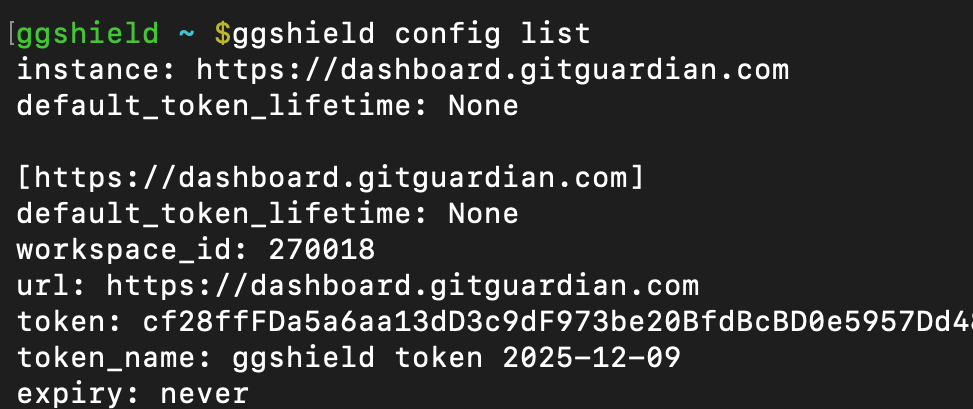
ggshield can print the list of your configuration keys and values, including workspace_id, admin dashboard URL, token, token_name, and token expiration if set. These are not stored in your global or local configuration gitguardian.yml files. These are not items you would typically want to share.
To print the list of your config, use:
ggshield config list
API Status
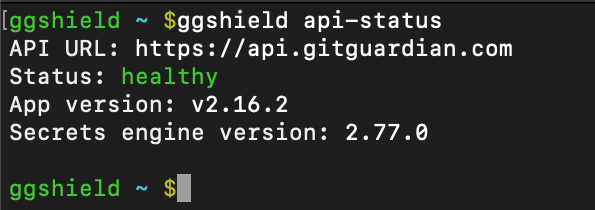
While the GitGuardian platform is very robust and highly available, sometimes you need to troubleshoot why a tool is not delivering expected results. As with any tool connecting to a platform API, ggshield provides a way to test if the API endpoints are available. To see this status, use:
ggshield api-status
Quota
While you can, and should, run ggshield for free on your repositories, you should also be aware there is a monthly limit on the number of API calls you can make. By default, we grant 10,000 calls/month on our free plans and at least 100,000 calls/month for our Business and Enterprise customers.
To see how your available API call quota, use:
ggshield quota
Platform Considerations With ggshield
While ggshield is powerful, it is good to know the current limits to those superpowers.
GitGuardian will not scan individual files over 1MB in size or any files with binary extensions. Also, know that CLI commands can sometimes consume multiple API calls. For example, a repo scan can result in a large number of API calls, depending on the size of the repo; which is a good reason to keep an eye on your quota.
Make ggshield Part Of Your Workflow
GitGuardian's ggshield can help you quickly find any secrets in your repos, local files, archives, and commits. The CLI tool can also help you avoid sharing your secrets in your CI pipeline, Docker files, and even dependencies. Automate your workflow with the help of Git Hooks and ggshield install.
We are proud to help you strengthen your active defense posture with Honeytokens. And help you do threat hunting with HasMySecretLeaked. While there are a lot of options and parameters you can use, at its heart, ggshield is a very straightforward tool, designed with the developer in mind, with a mission to make it easier for you to find and fix secrets sprawl.
Sign up today to take advantage of GitGuardian from the comfort of the command line.
![How to Handle Secrets at the Command Line [cheat sheet included]](/content/images/size/w600/2022/10/22W40-blog-SecretsAtTheCommandLine-Cheatsheet.jpg)


![Using GitGuardian Honeytoken [cheat sheet included]](/content/images/size/w600/2023/07/Using-GitGuardian-Honeytoken-Cheat-Sheet-article.png)
![Secure Code Review Best Practices [cheat sheet included]](/content/images/size/w600/2023/07/Secure-Code-Review-Cheat-Sheet.jpg)